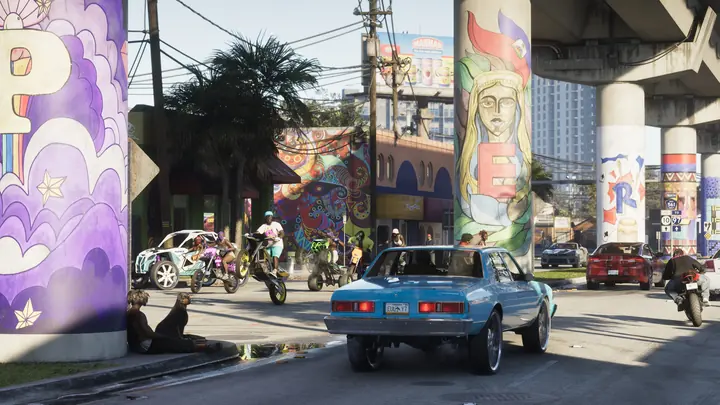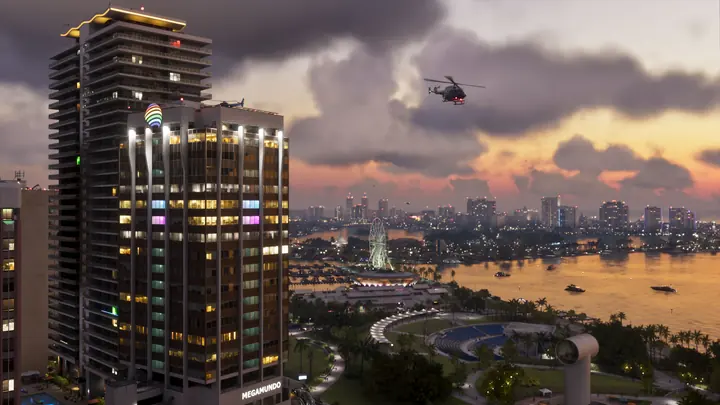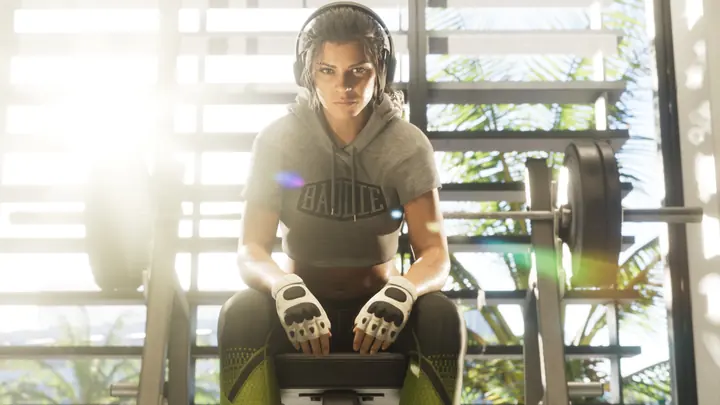
GTA 6 photo mode: how to use Photo Studio, the phone camera and Snapmatic
GTA 6 has a photo mode called Photo Studio from the very first minute. Here's how to open it, what you can tweak (lights, depth of field, filters), what the phone camera does and why Jason and Lucia can't post on Snapmatic.
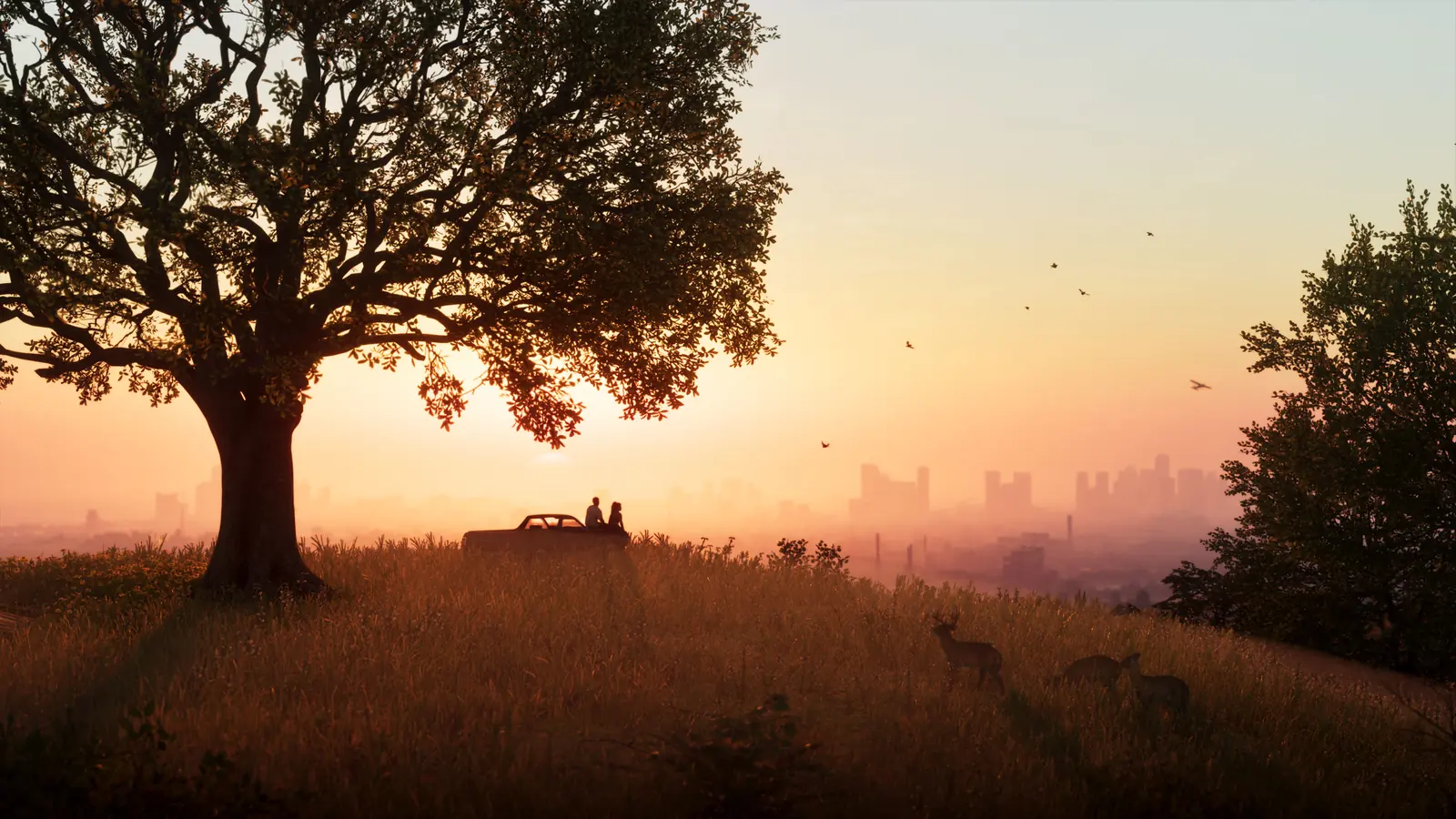
Leonida may be the best-looking world Rockstar has ever built, and the game knows it: GTA 6 ships with a full photo mode called Photo Studio, available from the start. On top of that, Jason and Lucia’s phone has its own camera for selfies. This guide brings together what TechRadar, Insider Gaming, Beebom and Gfinity, all playing the final game, have found.
How to open Photo Studio
| PS5 | Xbox Series X|S | |
|---|---|---|
| Open the pause menu | Options | Menu |
| Jump straight to Photo Studio | Square (with the menu open) | X (with the menu open) |
You can also scroll down the pause menu to Photo Studio. According to Beebom, it’s available from Lucia’s prologue: no missions required.
It also works during cutscenes, but with fewer tools: anything you can’t use is greyed out and marked “currently unavailable”, say Insider Gaming and Beebom.
What you can adjust
The guides agree on the basics, and each adds a detail or two:
- Camera: move the angle and change the aspect ratio (TechRadar).
- Depth of field: blur the background or the foreground (every source).
- Image: exposure, contrast, saturation and grain (Gfinity and TechRadar).
- Filters and vignette: preset filters plus a vignette effect. TechRadar counts 17 filters; Beebom gives the same number but for the phone camera, so it’s unclear which one it belongs to.
- Lighting: the most praised part. You add lights in layers and move each one, changing its colour, intensity, size and beam angle. Beebom mentions up to five lights; Gfinity talks about reflectors, stage lights and ring lights.
- Hide your character and hide the interface for clean landscape shots (Beebom).
What you can’t do (for now)
- You can’t change the time of day or the weather. If you want a sunset, you’ll have to wait or sleep: see how to skip time in GTA 6.
- You can’t change Jason’s or Lucia’s poses or facial expressions inside Photo Studio, according to TechRadar (citing IGN). Insider Gaming says you can “manipulate” the character but doesn’t explain how, so treat that with caution.
How to save your shot
When you’re done, hit Save Photo inside Photo Studio, or use your console’s screenshot button (Create on PS5, Share on Xbox). The phone also has a Gallery app where you can look back at photos you’ve taken, says Beebom.
The phone camera and selfies
Besides Photo Studio, the phone has a simpler camera:
- Press Up on the D-pad to bring out the phone.
- Open the Camera app (third icon on the first row, per Beebom).
- Flip to the front camera for a selfie.
Beebom says it unlocks once Lucia’s prologue ends and you take control of Jason. It offers:
- Selfies with six poses and seven expressions, and you can change your partner’s pose too if they’re in the shot.
- A rear camera with up to 5x zoom, grid lines and filters.
- A flash you can switch on or off (Gfinity).
Gfinity calls it “much more basic” than Photo Studio with “a few filters”, which clashes with Beebom’s 17. We’ll update this once it’s clearer.
Snapmatic: look, don’t post
Snapmatic, GTA’s social network, returns as a phone app. According to Insider Gaming and Beebom, you can:
- scroll through other characters’ posts,
- like posts and read the comments,
- mark on your map where a photo was taken (handy for finding pretty or odd places).
What you can’t do is post your own pictures. Insider Gaming points out that Rockstar had already said Jason and Lucia are passive social media users, which fits two fugitives trying to keep a low profile. Your photos stay on your console.
What players are saying
Photo mode has been one of the launch’s surprises. TechRadar reports that filmmaker Patrick Tomasso called the game a “cinematographer simulator”, and that some players say they spend more time taking pictures than doing missions. TechRadar’s advice is simple: use the same composition rules as in real photography.
Ideas for your shots
- Sunset in the Keys: play with depth of field against the water. Find spots in our Leonida map guide.
- Vice City at night: neon pops more with slightly lower exposure.
- Cutscene portraits: open Photo Studio during a scene to catch an expression you couldn’t pose, though with fewer tools.
- Use Snapmatic as a guide: mark other characters’ photos on the map and go take your own.
Some details, like the number of filters on each camera or whether poses can be changed, differ between guides. We’ll keep checking with more sources and if a patch changes photo mode.
Sources
- TechRadar: GTA 6 players hail the game's photo mode as a 'cinematography simulator' (Mark Wilson, November 19, 2026)
- Insider Gaming: Does GTA 6 have a photo mode? (Grant Taylor-Hill, November 18, 2026)
- Beebom: How to Use Photo Mode in GTA 6 (Shubham Chaurasia, November 19, 2026)
- Gfinity Esports: GTA 6 – How to access & use photo mode (Andrés Aquino, November 19, 2026)